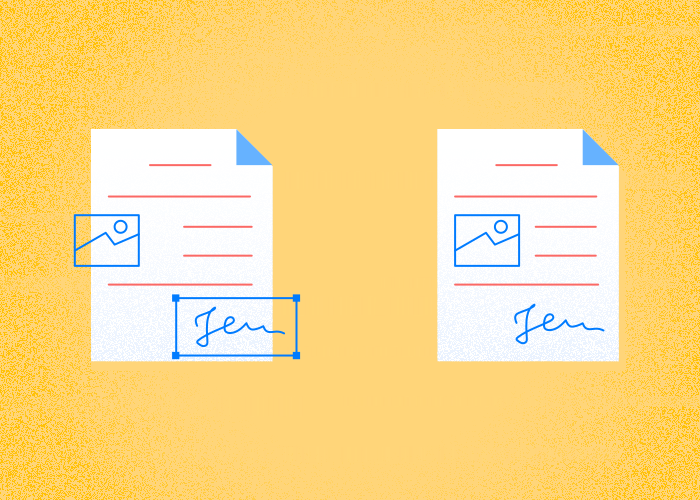
Learning how to flatten a PDF is a simple yet effective method to streamline your document sharing and printing processes.
Flattening makes form fields and annotations part of the page content. Keep the editable original.
Flattening can change the file size and appearance. Compare the output with the original and check a print preview before distributing it.
PDFTool provides a fast and convenient way to flatten a PDF file with just a few clicks.
Flattening can change the file size and appearance. Compare the output with the original and check a print preview before distributing it.
Using PDFTool to incorporate this step into document management routines can enhance productivity and ensure uniform communication of information.
Flattening makes form fields and annotations part of the page content.
Check the completed fields and signature placement in the downloaded copy before sharing.
What does it mean to flatten a PDF?
Flattening makes form fields and annotations part of the page content.
Flattening makes form fields and annotations part of the page content.
Annotations are also affected by flattening. They are embedded into the PDF as part of the document's layer.
When dealing with a PDF document, flattening helps maintain the appearance across different devices and applications. It removes the variability caused by interactive components.
PDFTool runs in your browser. Open the website and upload your PDF to edit it; there is no PDFTool iOS or Android app to install.
Why flatten a PDF?
Choose password protection or flattening according to your goal, then review the result in the recipient’s PDF reader.
Flattening can change the file size and appearance. Compare the output with the original and check a print preview before distributing it.
Flatten PDF
Flattening makes form fields and annotations part of the page content.
Compare the output with the original and check a print preview before distributing it.
Editing restrictions can reduce accidental changes; they do not establish authenticity or guarantee compliance.
Removes interactions
Flattening makes form fields and annotations part of the page content. Keep the editable original.
Flattening is not password protection and does not make a PDF tamper-proof. Use separate access controls for confidential documents.
This is particularly useful when sharing contracts, forms, or other important documents where changes need to be controlled.
Converts annotations
Flattening makes form fields and annotations part of the page content.
If you need to edit the form later, use the original file or restore an earlier document version.
This is essential for legal, business, or academic documents that require accuracy and integrity in shared communication.
Flattening can change the file size and appearance. Compare the output with the original and check a print preview before distributing it.
Document access and password protection
Flattening makes form fields and annotations part of the page content.
Flattening is not password protection and does not make a PDF tamper-proof. Use separate access controls for confidential documents.
Before uploading sensitive files, check the privacy information and your organisation's requirements. Password protection and team permissions are available for managing documents.
Compatibility
Flattening can change the file size and appearance. Compare the output with the original and check a print preview before distributing it.
Compare the output with the original and check a print preview before distributing it.
Check the completed fields and signature placement in the downloaded copy before sharing.
Reduces file size
Flattening can change the file size and appearance.
This is especially helpful when dealing with large files or slow internet connections, as smaller file sizes lead to faster download and upload speeds.
How to flatten a PDF file using PDFTool
Flattening a PDF can simplify sharing and printing. Here are the simple steps you can take using PDFTool to get the job done:
Step 1: upload the PDF
Upload your PDF to PDFTool’s website. You can also drag and click the file to the upload area.
Step 2: flatten the PDF
Click on the “Flatten PDF” button to begin the process.
Step 3: save the PDF
Once the file is processed, press “Save File”.
Step 4: download the PDF
Check the completed fields and signature placement in the downloaded copy before sharing.
Flattening makes form fields and annotations part of the page content.
Flatten a completed PDF form before sharing or printing it when you want its fields and annotations to become part of the page. Keep the editable original so you can update the form later.
Upload your completed PDF to PDFTool’s Flatten PDF tool.
Run the flattening tool, then download the result. Check every page, including entered text, tick boxes and signature placement.
Open the downloaded PDF and try selecting a field you previously filled in. A flattened field no longer accepts input as a form field. Other page content may still be editable with a PDF editor; flattening does not make the file tamper-proof.
Compare the file size before and after flattening. It can increase or decrease depending on the document. If you are preparing a printout, check the print preview for missing marks or changed positioning.
FAQs
What does flattening a PDF mean?
Flattening makes form fields and annotations part of the page content.
PDF permissions are not a guarantee that a downloaded copy cannot be changed or reproduced.
Flattening is not password protection and does not make a PDF tamper-proof. Use separate access controls for confidential documents.
If you need to edit the form later, use the original file or restore an earlier document version.
How do you flatten a PDF?
To flatten a PDF, you need to consolidate all the document's interactive elements into a static format. You can use a PDF flattener tool like PDFTool to do this.
Flattening makes form fields and annotations part of the page content. Keep the editable original.
Flattening can change the file size and appearance. Compare the output with the original and check a print preview before distributing it.
How to flatten a PDF document online?
To flatten a PDF online, upload the document to the PDFTool website.
Choose the tool for your task and follow its on-screen steps. Contact support if you need help getting started.
Flattening makes form fields and annotations part of the page content.
How to tell if a PDF is flattened?
Flattening makes form fields and annotations part of the page content. Keep the editable original.
Check the completed fields and signature placement in the downloaded copy before sharing.
Does flattening a PDF reduce file size?
Flattening may reduce a PDF’s file size by consolidating multiple elements into a single layer. By eliminating interactive elements such as form fields and annotations, the document may become more compact.
However, the extent to which the file size is reduced can vary depending on the original content and the specific features used within the PDF. For precise outcomes, comparing the file size before and after flattening will provide clear insight.
Should I flatten a PDF for printing?
Compare the output with the original and check a print preview before distributing it.
Unflattened PDFs may display differently when printed, leading to discrepancies between the digital and printed versions.
Check the completed fields and signature placement in the downloaded copy before sharing.