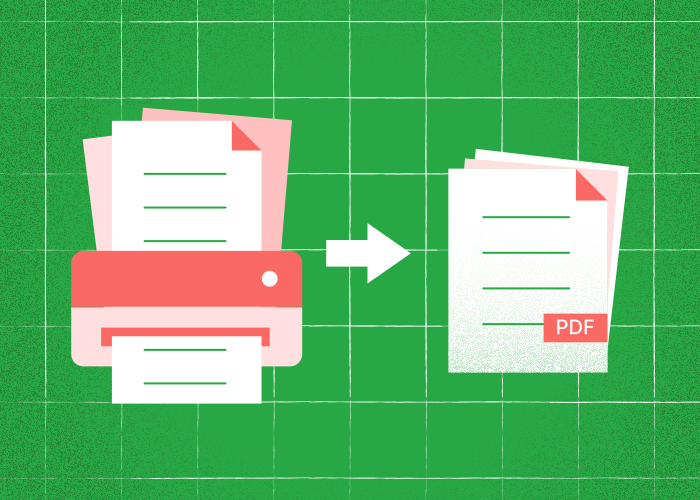
Knowing how to scan multiple pages into one PDF is a valuable skill. Creating a digital document that contains multiple pages in one PDF format simplifies the task of storing and sharing information.
Scan the pages with your scanner or device first. Then upload the resulting PDF files to PDFTool to combine them into one document.
Whether digitising personal records, compiling professional paperwork, or organising educational materials, scanning multiple pages into one PDF can streamline your workflow.
PDFTool simplifies the steps, transforming a potentially complex task into a hassle-free experience. This capability encourages users to leverage digital documentation, saving time and effort.
Mastering this skill involves understanding the right tools and techniques to enhance productivity.
For anyone eager to maintain a clutter-free and efficient digital filing system, learning to create a multi-page PDF is essential.
This article will guide you through the process, offering tips and insights to optimise your document management strategy.
Scan the pages with your scanner or device first.
Scan the pages with your scanner or device first. Then upload the resulting PDF files to PDFTool to combine them into one document.
Instructions:
Then upload the resulting PDF files to PDFTool to combine them into one document.
Arrange and Merge: Use the interface to reorder pages if needed. Click "Merge" to compile them.
Download PDF: After processing, download the newly created PDF file.
Additional tips:
Scan the pages with your scanner or device first. Then upload the resulting PDF files to PDFTool to combine them into one document.
HP or Canon Devices: These often come with bundled scanning software for initial scans. Utilize them to capture pages before using PDFTool.
PDFTool simplifies the task of bundling scans into one cohesive document, allowing easy sharing and storage.
FAQs
How to combine scanned documents into one PDF?
Scan the pages with your scanner or device first. Then upload the resulting PDF files to PDFTool to combine them into one document.
How to scan two pages in one document?
Scan the pages with your scanner or device first. Then upload the resulting PDF files to PDFTool to combine them into one document.
Can you reorder the PDF pages after scanning multiple pages to one PDF?
Yes, PDFTool allows users to reorder pages easily. After scanning, open the PDF in PDFTool and select the "Reorder" function.Drag and drop pages to the desired sequence. This flexibility ensures that the content is organised logically and is reflective of user preferences.Once satisfied with the order, save the changes to update the PDF.
After scanning multiple pages to a PDF, can you split them?
PDFTool enables users to split a single PDF into multiple files if needed. Import the PDF into PDFTool and choose the "Split" feature.Define the specific pages you want to separate. This process allows for extracting and dividing parts of a document for different uses.Saved as individual files, these new PDFs can then be used independently.
How to combine two scanned pages?
Scan the pages with your scanner or device first. Then upload the resulting PDF files to PDFTool to combine them into one document.